
More creator connections.Less manual outreach.

Let your DM Agent handle TikTok Shop outreach and follow-ups, so your team can focus on turning replies into partnerships.

Creator outreach message 1Creator outreach message 2Creator outreach message 3Agent

When outreach becomes admin

Less chasing. More conversations.

Copy the message. Check the list. Set another reminder. When every introduction needs its own manual process, keeping conversations moving becomes a job in itself.

“Have we already contacted them?”

Lists multiply. Context gets lost. Checking who received which message slows down every new introduction.

“Who still needs a follow-up?”

Scattered reminders make it easy to miss the right moment to follow up.

“Which campaign is getting replies?”

Scattered messages and notes make it hard to see which campaigns get replies.

Manual outreach vs. DM Agent

Manual outreach vs. DM Agent

Your team chooses the audience, approves the offer, and handles creator conversations. Your DM Agent organizes the messages, follow-ups, and tracking. Here’s how the workflows compare.

Manual outreach

  • Collect creator profiles and track recipients in a spreadsheet.
  • Copy each message and replace the creator’s name.
  • Keep reminders for who needs a follow-up and when.
  • Fit individual sends around your team’s other tasks.
  • Reconcile campaign notes to see who was contacted and who replied.

With Quacko DM Agent

  • Select creators using filters, saved lists, or segments, then add exclusions.
  • Build a reusable message with the creator username variable.
  • Add follow-up messages and set their delays in the same sequence.
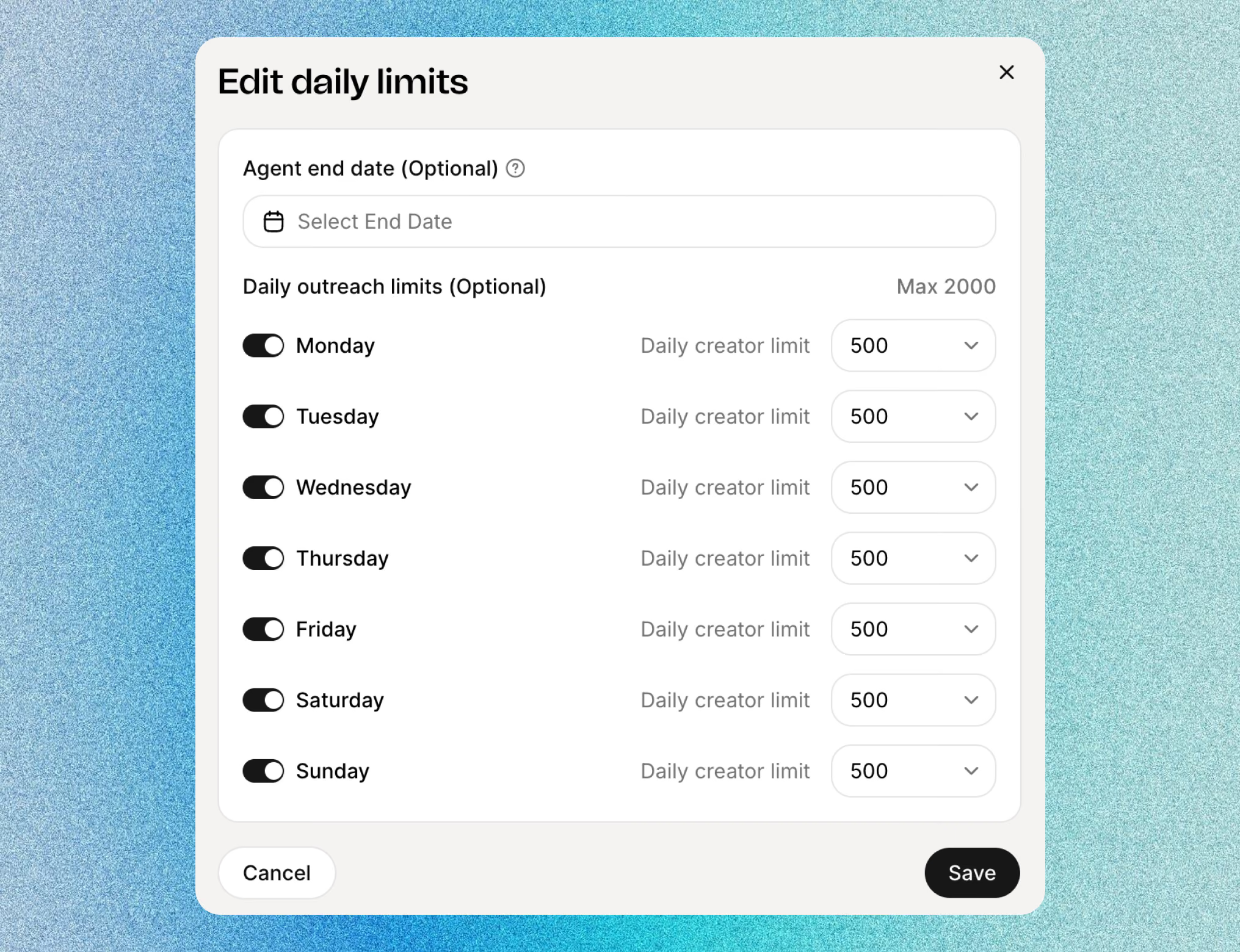
  • Configure a sending window, time zone, and daily limit.
  • Review Agent status, creators reached, remaining creators, and replies.

How DM Agent works

From your first message to your next creator partnership. Set up, launch, and track your outreach in six steps.

Step 01

Create your Agent

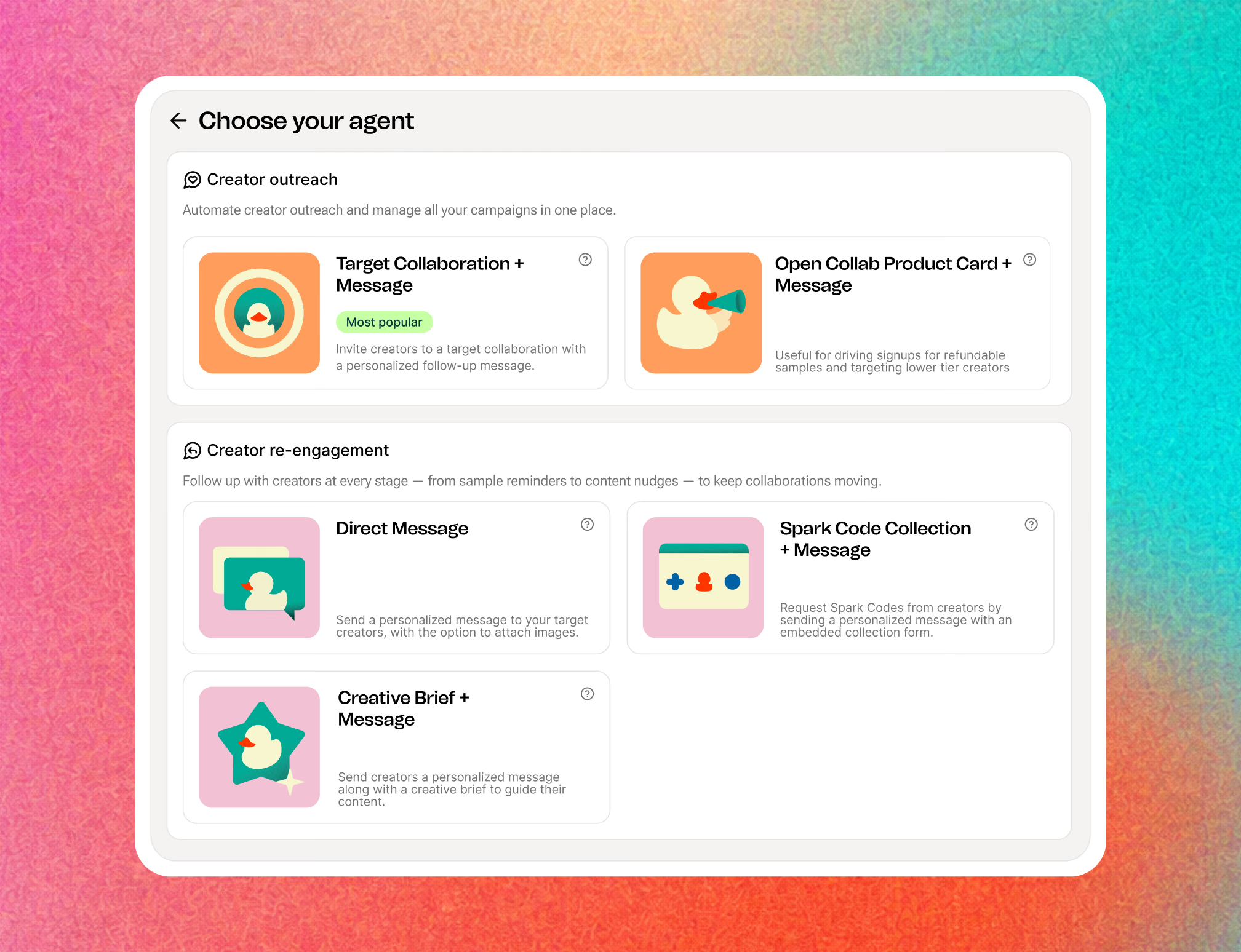
Open Outreach and start a new Agent. Choose Direct Message for a creator introduction.

Give the campaign one clear purpose

For example: invite skincare creators to learn about your TikTok Shop affiliate program.

Name the Agent so you can identify it later: “Skincare · Affiliate introduction · September.”

Then continue through Select creators and Message setup.

Choose the workflow that matches the task

Use Direct Message when you want to start a conversation. If your next step is a collaboration invitation, creative brief, or Spark Code request, choose the corresponding workflow so the setup fits that task.

Step 02

Choose your creators

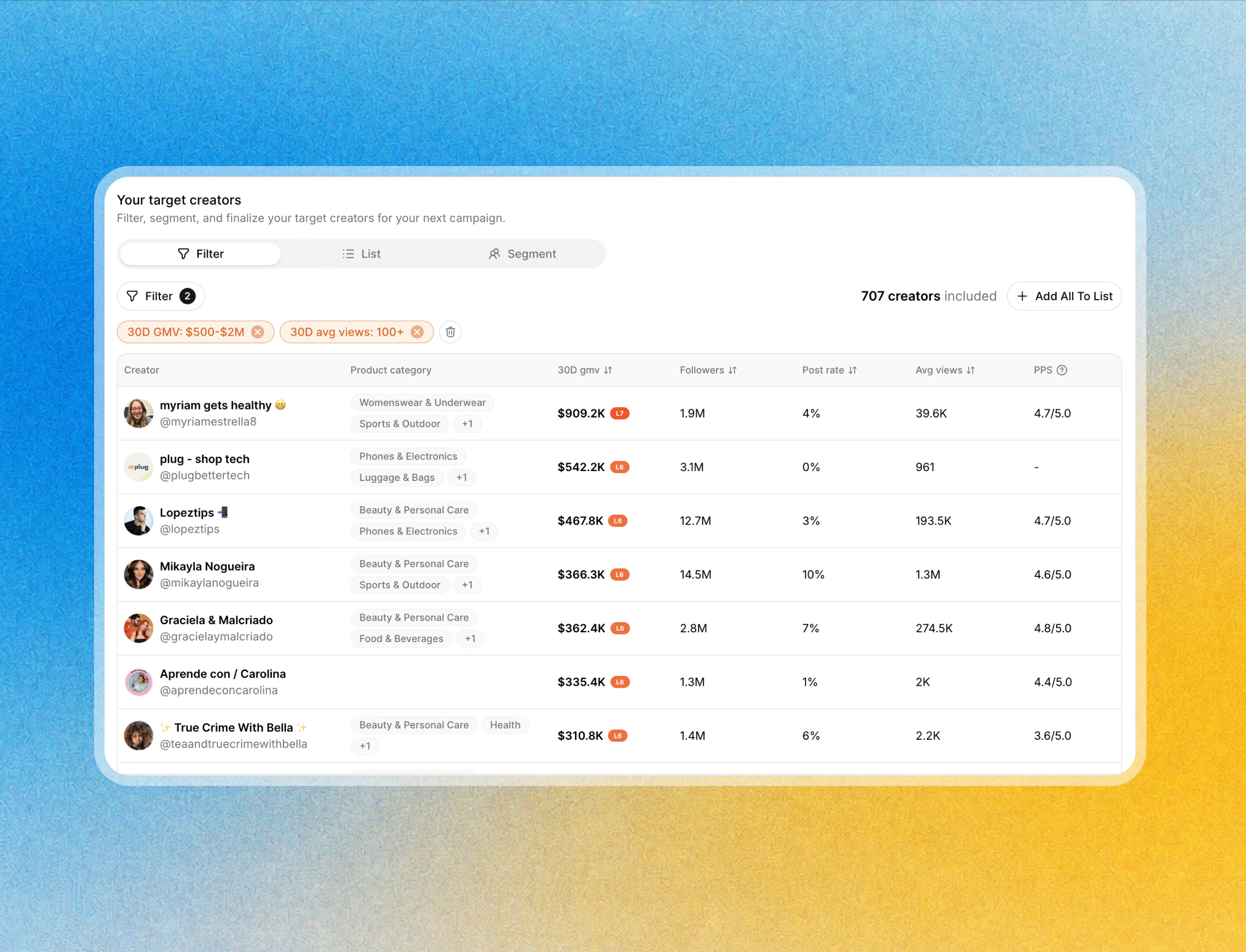
Use filters, a saved list, or a segment in Select creators.

Example audience

For a skincare launch, choose creators whose content relates to the product’s use case. Review content relevance alongside the audience filters before adding them to the campaign.

  1. Review a few profiles to check product and content fit.
  2. Exclude creators already discussing the same offer with your team.
  3. Check the final “ready for outreach” count before continuing.

Review the final audience

The ready-for-outreach count reflects your included creators minus exclusions. Select at least one creator before continuing, and start with a group whose replies your team can manage.

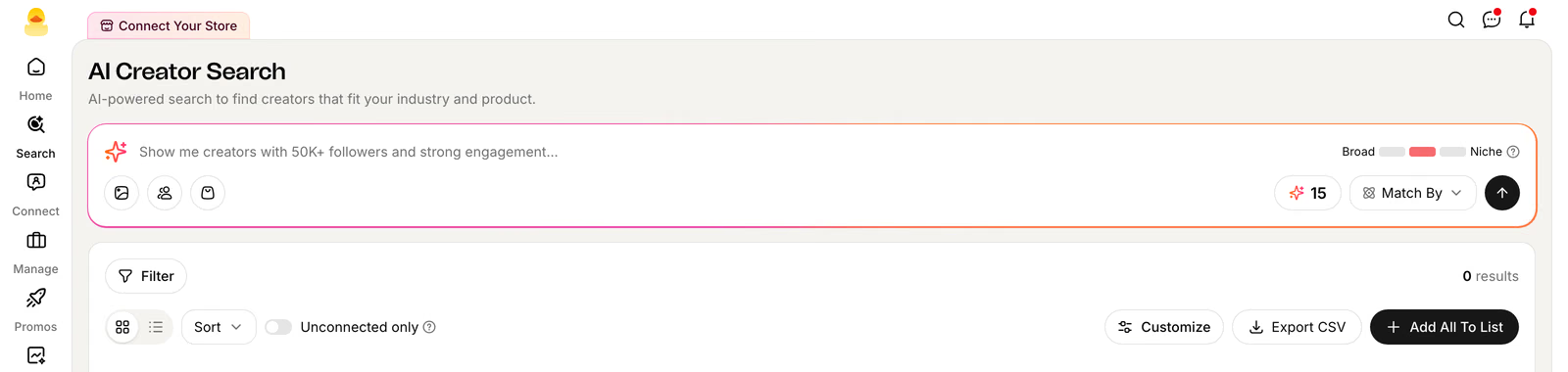
Need a shortlist? Start with creator search and save the relevant creators to a list.

Step 03

Write your message

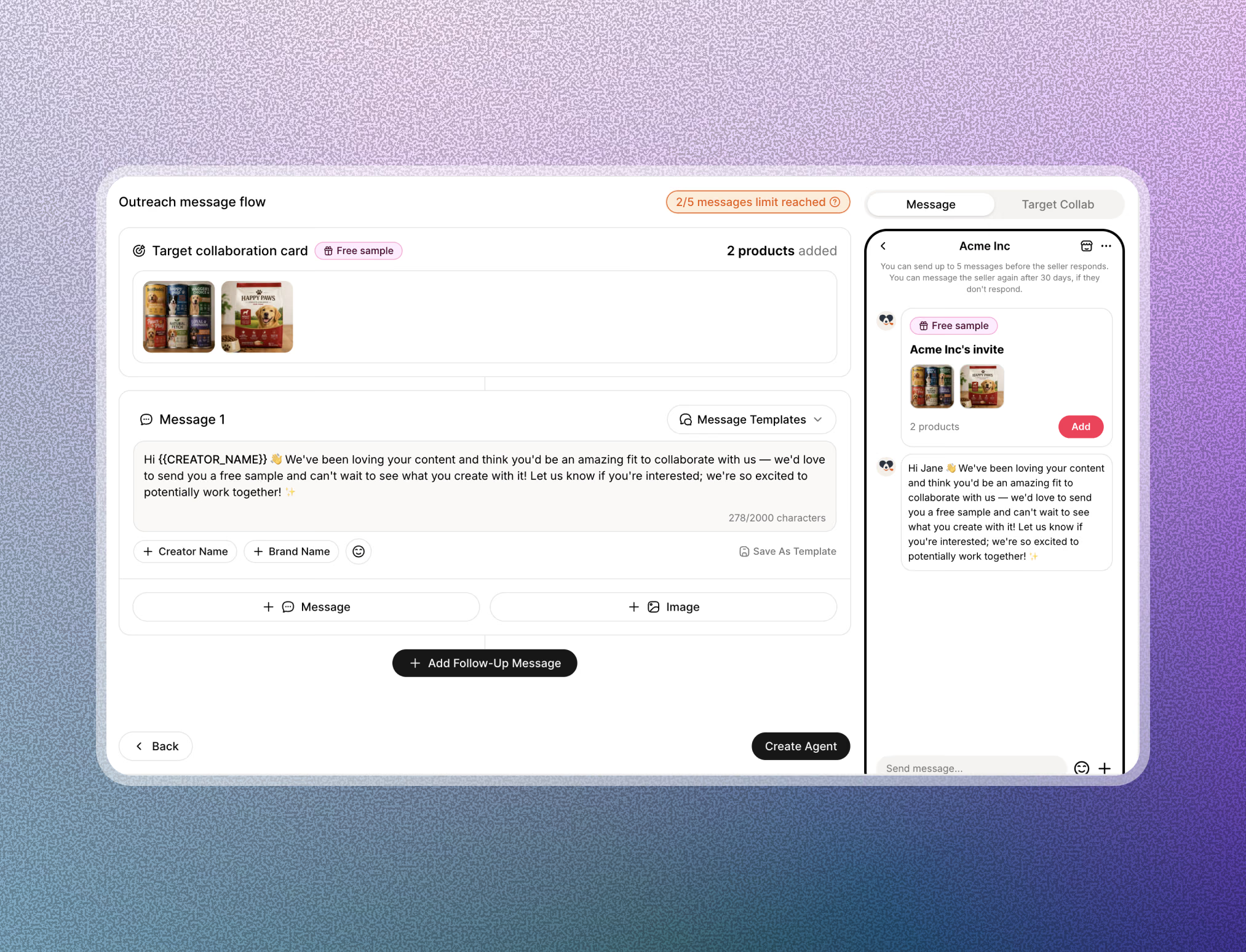
In Message setup, introduce your brand, explain the opportunity, and end with one easy question.

  1. Introduce the sender. State your name and brand.
  2. Explain the fit. Connect the product to the audience’s content.
  3. Describe the opportunity. Use confirmed affiliate or sample details.
  4. Ask one question. Make it easy to express interest.

A first DM you can adapt

Hi {{creators username}}, I’m [your name] from [brand].

We’re introducing [product] for [specific use case] and inviting creators to explore our TikTok Shop affiliate program.

Would you like me to send the product details and collaboration terms?

Use Creator name in the editor to insert the username variable. Replace every [bracketed detail] and include only confirmed offer terms.

Personalize beyond the greeting

A username makes the greeting personal; a relevant product and offer make the message useful. Adapt any saved template to this creator group. Reference a particular video only when you have reviewed it.

If commission or sample terms are confirmed, add one short sentence before the closing question. Attach an image when it helps explain the product, while keeping the invitation clear in the text.

Step 04

Plan your follow-ups

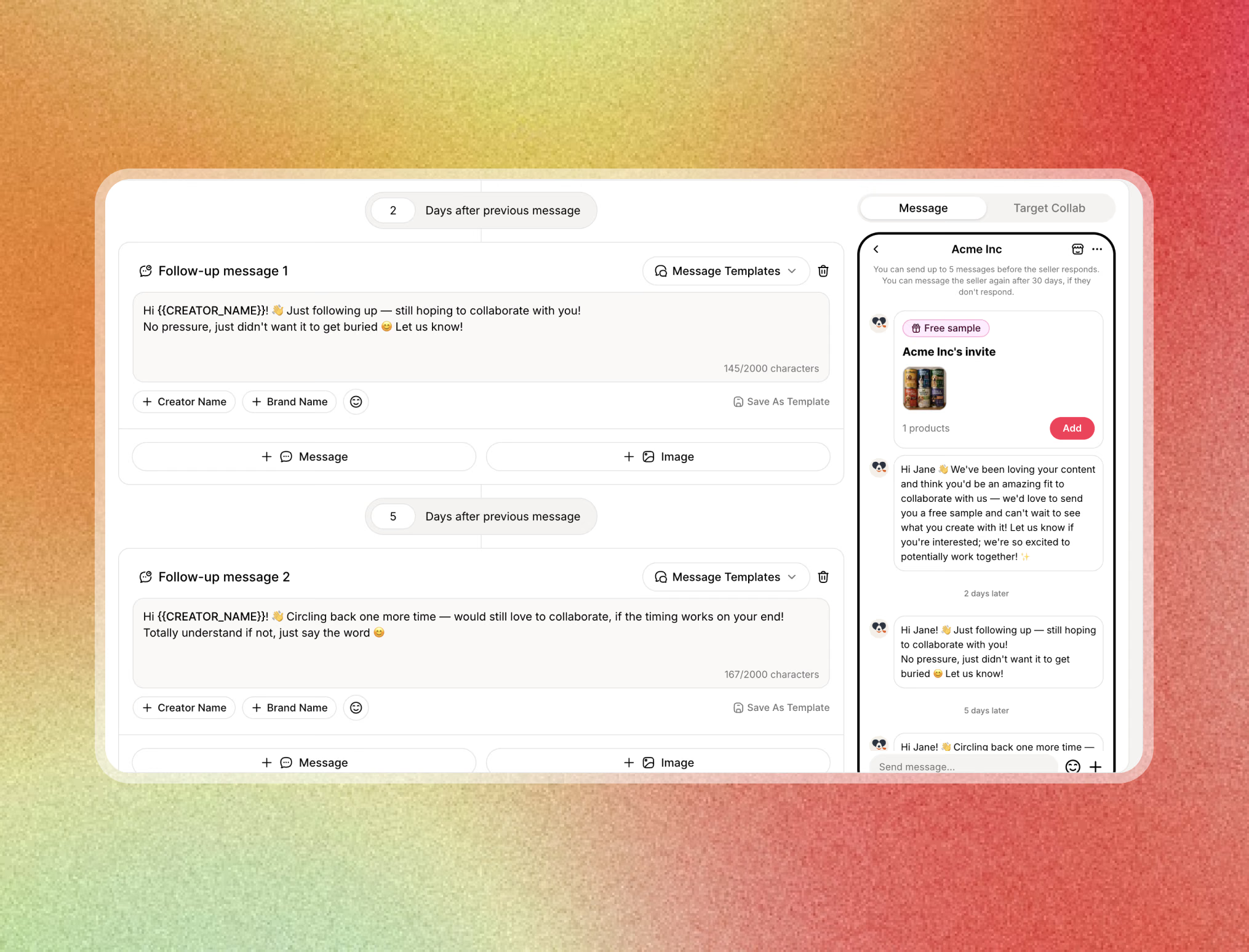
Add a follow-up in Message setup, choose its delay, and check the order of your sequence.

Give the sequence a simple rhythm

Introduction → useful detail → final check-in.

You might leave a few days before the first follow-up and a longer gap before the final one. Treat this as a planning example; review each delay in the editor and adjust it to your campaign.

Give the creator a new reason to reply

Hi {{creators username}}, one more detail about [product]: [a useful, verified benefit].

I can share [product information or campaign brief] if you’d like to see whether it fits your content. Would that be helpful?

Allow time for a response before following up. Review the delays and message counter in the editor, including any images or other blocks.

Optional final follow-up

Hi {{creators username}}, checking once more about [brand]’s affiliate opportunity. If you’re interested, I’m happy to share the details. If the timing isn’t right, no problem—thanks for considering it.

After the planned sequence, review the response before adding more outreach. Respect declines and use exclusions when a creator should not receive your next campaign.

Step 05

Set your schedule

Set Time zone, Time range, and Message daily limitation to suit your campaign.

Set a manageable sending pace

Choose a time window that suits the audience and a daily volume your team can support. Check the available limits in your workspace before planning the campaign.

Check these before sending

  • The audience and exclusions are correct.
  • Messages contain no drafting placeholders.
  • Follow-up delays and attachments look right in the preview.
  • Someone on your team is ready to handle replies.

Save as a draft if you need more time, or run the Agent when ready. Choosing to run later keeps it stopped until you start it.

Confirm the Agent’s status

After launching, find the Agent by name in the dashboard and confirm that it is Running. A saved draft is unfinished; a Stopped Agent needs to be started before you expect it to send.

Step 06

Track reach and replies

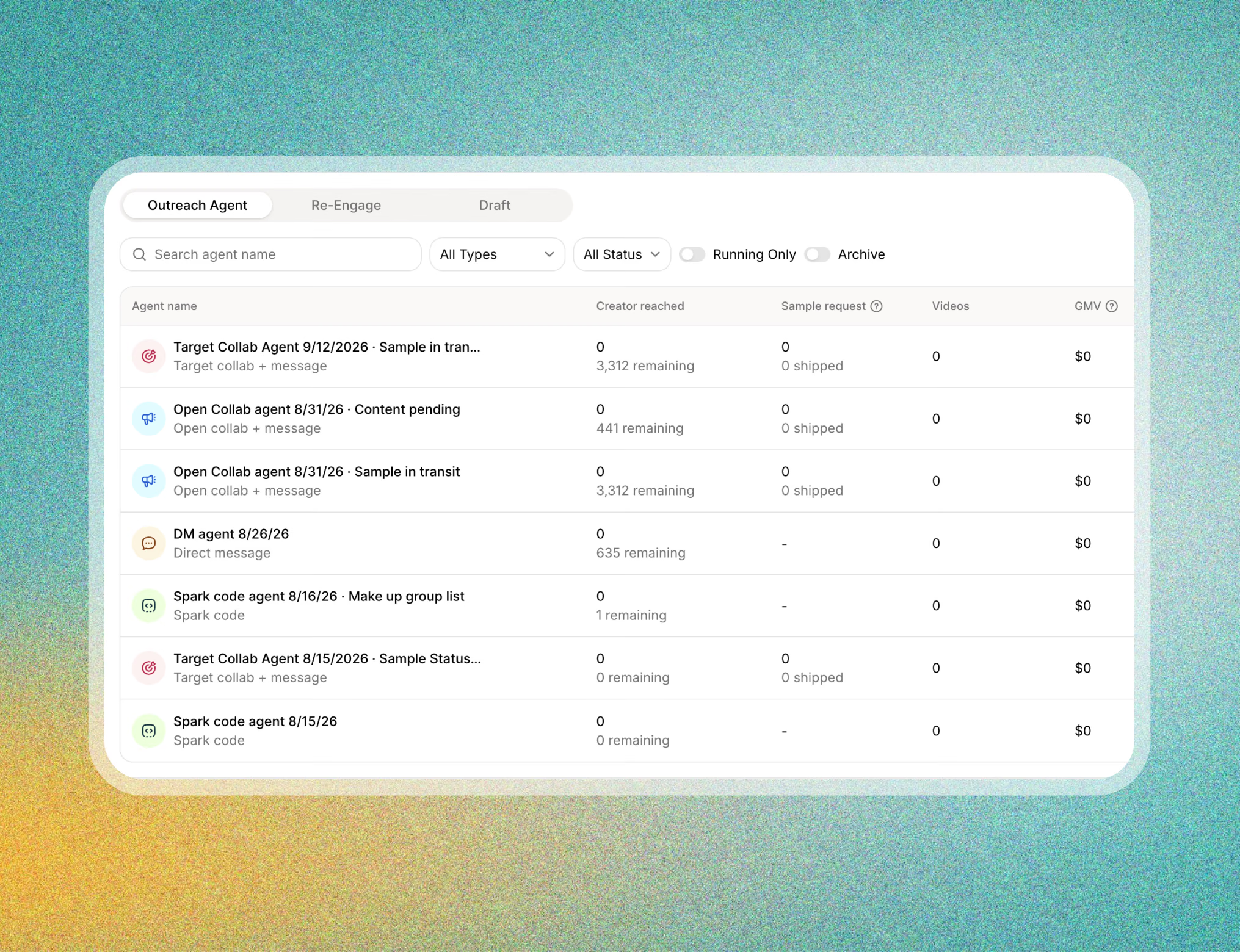
Find your Agent in the Outreach dashboard, then open it to review the details.

Compare response, not just volume

For your own review, calculate unique creators who replied ÷ creators reached × 100.

Example: 20 replying creators out of 200 reached is 10%. These are illustrative numbers, not a benchmark. Count each creator once and use the same observation period.

Status and reach
Check Running or Stopped status, creators reached, and remaining creators. If progress stalls, review sending times and available limits.
Performance and creators
Review the reach trend in Performance. Open Creators to inspect reached dates and reply status, then read the responses.
Your next action
Answer interested creators, clarify repeated questions, and review audience fit if few people reply. Use Edit and Update Agent when you need to revise the setup.

Use replies to improve the next campaign

  • Few replies: review audience fit, offer clarity, and the closing question.
  • Repeated questions: add the missing detail to your next message version.
  • Interest stalls: review response time and make collaboration terms and next steps clear.
Choose a creator outreach Agent workflow

Meet your next affiliate

Start with creators who fit your product. Introduce your brand, explain the opportunity, and give them one easy reason to reply.

Try For Free
Creator jumping in front of a purple wall
Friends enjoying music together

Give partners a reason to return

Reconnect with creators you’ve worked with before. Reference your previous collaboration and share a relevant product update or a new opportunity.

Try For Free

Feature highlights

Everything for creator outreach

Focused audiences

Filters, lists, segments, and exclusions help define who receives each campaign.

Personalized messages

Creator variables and saved templates help your team prepare relevant introductions.

Useful attachments

Add an image when it helps explain the product or opportunity.

Planned follow-ups

Build the next messages alongside your introduction and choose their delays.

Sending controls

Set a daily limit, sending window, and time zone around your campaign.

Visible progress

Review Agent status, reach, remaining creators, and replies to guide your next action.

Clear messages. Clear next steps.

Create your first DM Agent

Bring your TikTok Shop creator outreach into one workflow, with relevant messages, clear offers, and timely follow-ups. Your Agent organizes the outreach so your team can focus on turning replies into partnerships.

FAQ

Creator outreach questions?

A DM Agent organizes creator outreach around a selected audience, a personalized message sequence, follow-up delays, and sending controls. In Quacko, you can review campaign progress and creator replies after launching.

Start a new agent in Outreach and choose Direct Message. Complete Select creators and Message setup, review your sending controls and phone preview, then run the Agent or save it as a draft.

Introduce yourself and your brand, explain the product opportunity, and ask one clear question. Use only confirmed offer details. Insert the creator username using Creator name in the editor, and replace any drafting placeholders before sending.

Add follow-up messages in Message setup and review each delay. Give each message a useful purpose, such as sharing product context or clarifying the next step. Check the editor’s message counter and review replies before deciding on additional outreach.

Yes. Save the setup as a draft and reopen it from the dashboard to continue. For an existing Agent, use Edit and save with Update Agent. Review its status separately to confirm whether it is running or stopped.

Review status, creators reached, remaining creators, and replies in the Outreach dashboard. Open the Agent to inspect Performance, the reached creator list and reply status, and Agent configuration. Read the replies to understand interest and decide on the next action.

Find Your Next Top Creator?

See Quacko on your own product and category in a 20-minute walkthrough.

No credit card required.

Want to learn more?